

AI Call Agent
When to use AI call agent
Line 21 is able to transcribe your meetings through an AI call agent (sometimes referred to as a Bot). The Bot can automatically join your calls and transcribe the audio using the powerful setup provided by Line 21 ASR.
Call agent vs Meeting project type
Line 21 has two features that are useful for transcribing meetings:
| Feature | Description | When to use |
|---|---|---|
| Meeting project type | A project type that is designed for meetings. Participants join a special page with ASR enabled in their language. The captions are cross-translated to all other languages. | Multilingual conference calls with minimum of two source languages where strict diarisation is important. |
| AI Call Agent | Transcribe entire meeting by having an ASR bot joining the call. Translate the transcript in real-time to any languag. | Single or multi-language conference calls with limited diarisation. |
Apps supported
| Platform | Status |
|---|---|
| Zoom | 👍 Supported |
| Microsoft Teams | 🛠️ Under development |
| Google Meet | 🛠️ Under development |
Zoom
Prerequisites
- A Zoom account and sufficient permissions to add bots to your meetings.
- A Line 21 standard project with at least one primary lanaguage enabled in ASR mode.
Set up your Zoom account
Setting up a Bot for Zoom is easy. First, add our integration to your account through the
Zoom Marketplace.
Set up your Line 21 bot
In your Line 21 project, in the AI Call Agent section, click on the plus icon to add a new bot.
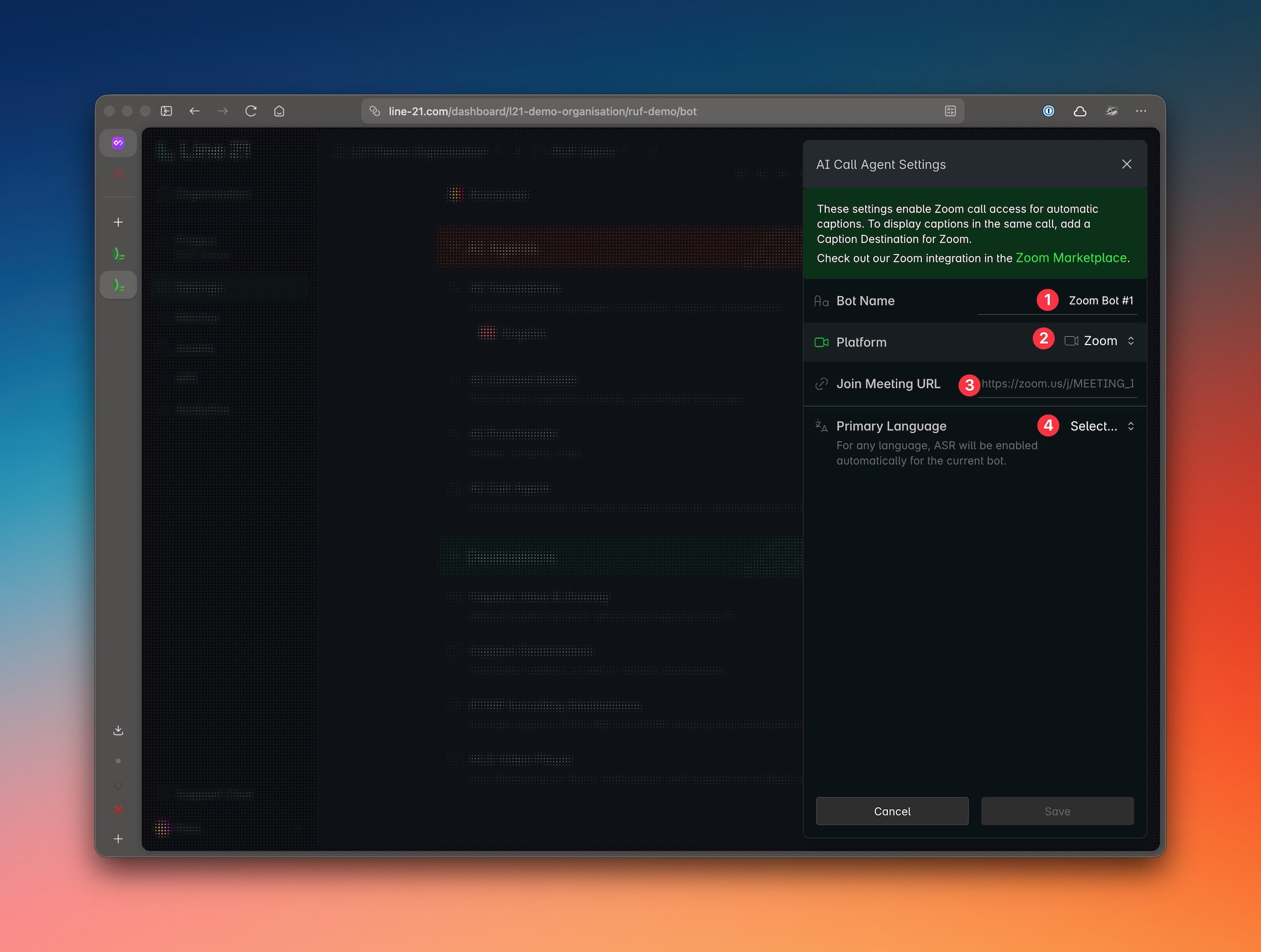
Fill in the following information:
- Bot Name — The name shown to participants in the call.
- Platform — Only Zoom is available at the moment.
- Join Meeting URL — Your meeting URL. If the meeting was scheduled in advance, use the same link you shared with participants. Zoom Webinar links are also supported.
- Primary Language — The language spoken in the meeting, as previously configured in the project.
After saving, you will see a new AI Call Agent entry in your project.
Run a Zoom Bot
Once your Zoom Bot is ready, you can ask it to join your call by clicking the Join call button.
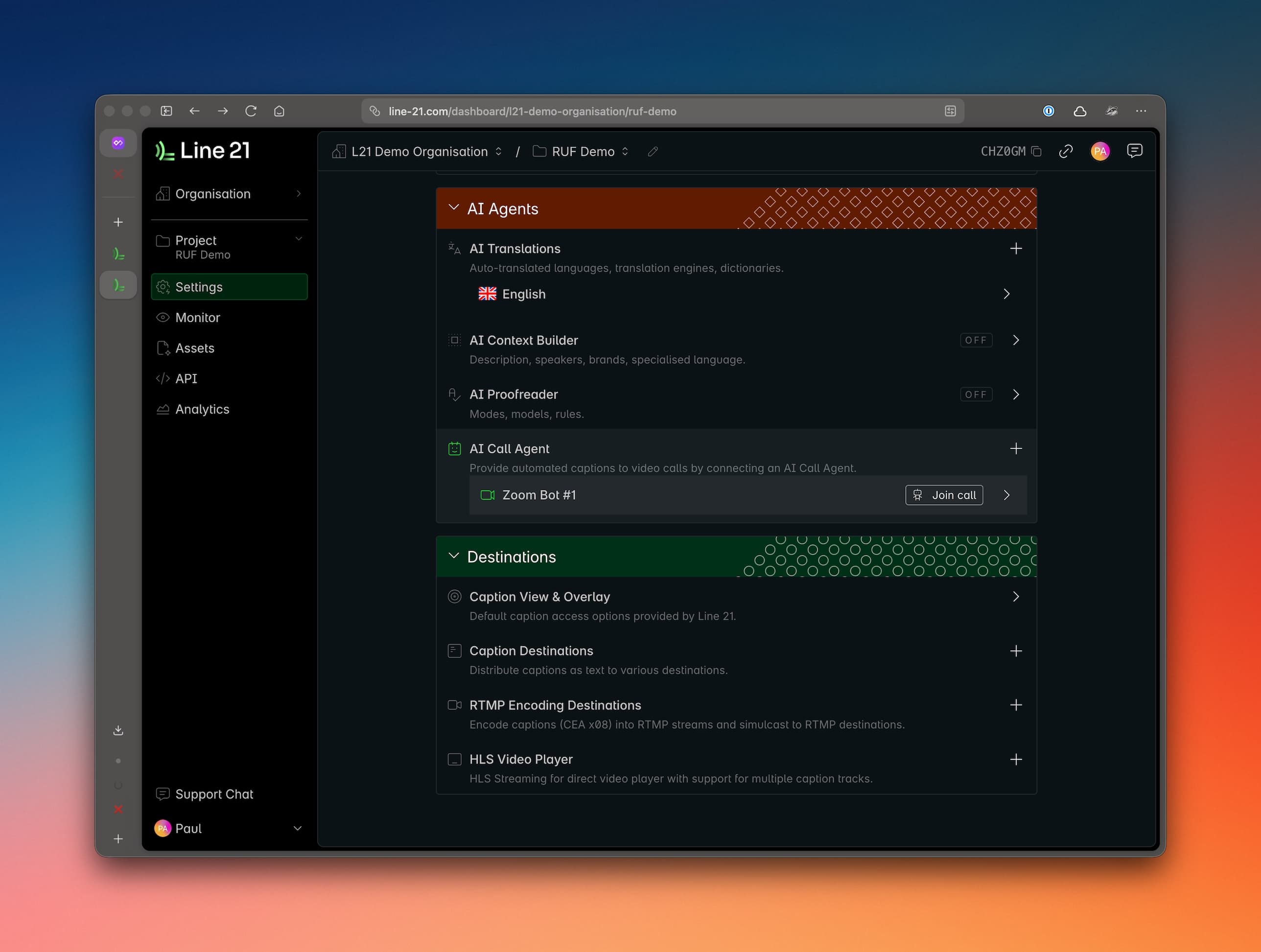
When clicked, the Bot will attempt to join the call. The host may need to admit the Bot depending on your Zoom settings.
As soon as the Bot joins, it will request permission to record the call. This is required for the Bot to access audio. Line 21 does not store any audio from your meetings — it is only used live to perform automatic speech recognition.
Once the host grants recording permission, the transcription will start.
Show captions on Zoom
If you want the transcription to appear directly inside the Zoom call, you can configure a
Zoom API destination (supports only one language). Alternatively you can share a browser link to the participants (supports all configured languages & translations).