

Text destinations
What are text destinations?
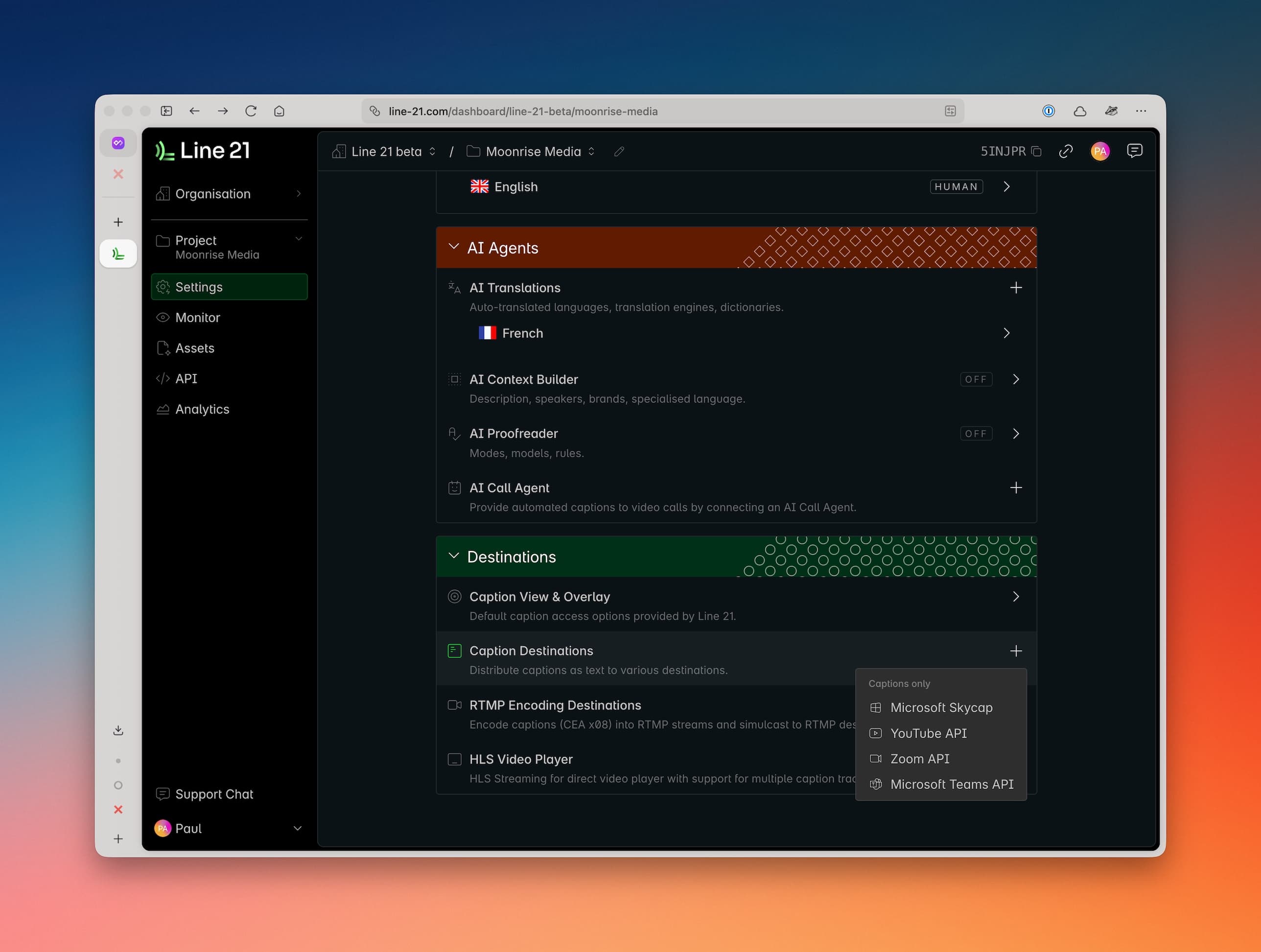
Text destinations are targets (platforms, systems, apps, pages) that accept captions as text (and not video). The method of delivery is typically via an API credential. When such a destination is configured, be aware of the following aspects:
- Timestamps: When allowed we distribute the captions alongside timestamps to allow the destination platform to synchronise them to the video. However, this is entirely dependent on the target's ability to process the captions in real-time.
- Closed captions: The captions are typically visible to the audience as closed captions inside the event platform.
Below you can find our main integrations. Contact us if you require another API-based text integration.
Supported languages
In general, the text destinations can display all languages supported by Line 21 as a source. However, each target platform may have specific limitations on the languages it supports. Check with the platform's documentation for more details and definitely test before the event.
Microsoft Skycap
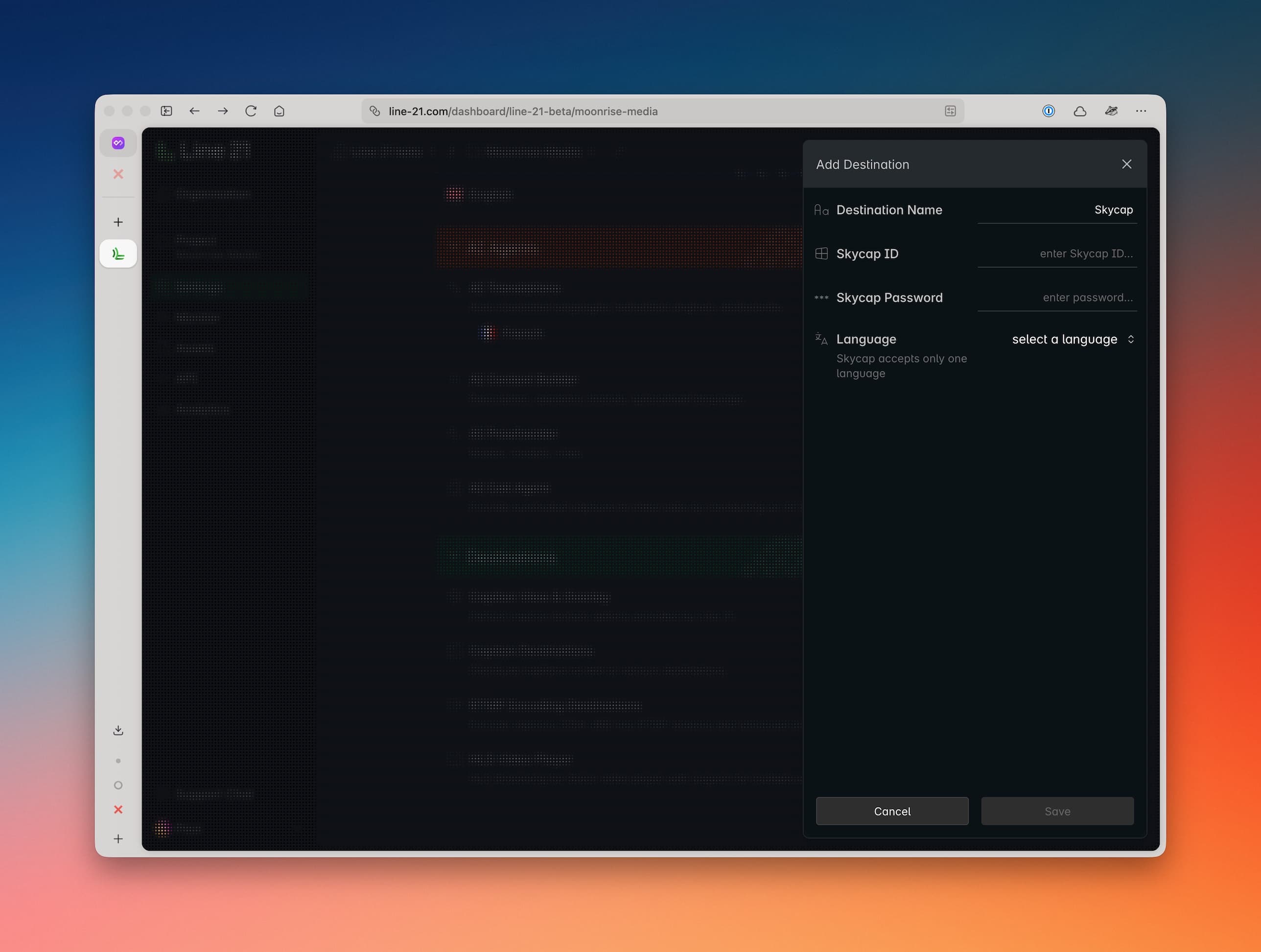
Microsoft SkyCap is an internal tool used by Microsoft for particular communications needs. SkyCap allows for human or automated captioning.
SkyCap's integration with Line 21 was specifically built for APAC languages, from 2023 onwards.
Microsoft showrunners will need to provide a SkyCap ID for the 'box' they are using, and password.
Microsoft showrunners will also need to ensure they have selected the correct matching language in SkyCap in order for captions to flow.
YouTube API
YouTube Live allows for 2 methods of providing closed captions for the audience:
- RTMP Encoded Captions: this allows for an RTMP ingest stream containing already the captions encoded in 608/708 format. We cover this here. RTMP streaming.
- Caption Ingestion URL: this allows for captions to be sent as time-stamped text. This method is covered below.
Setup YouTube Studio
You also need to setup the YouTube Studio to accept captions through this method.
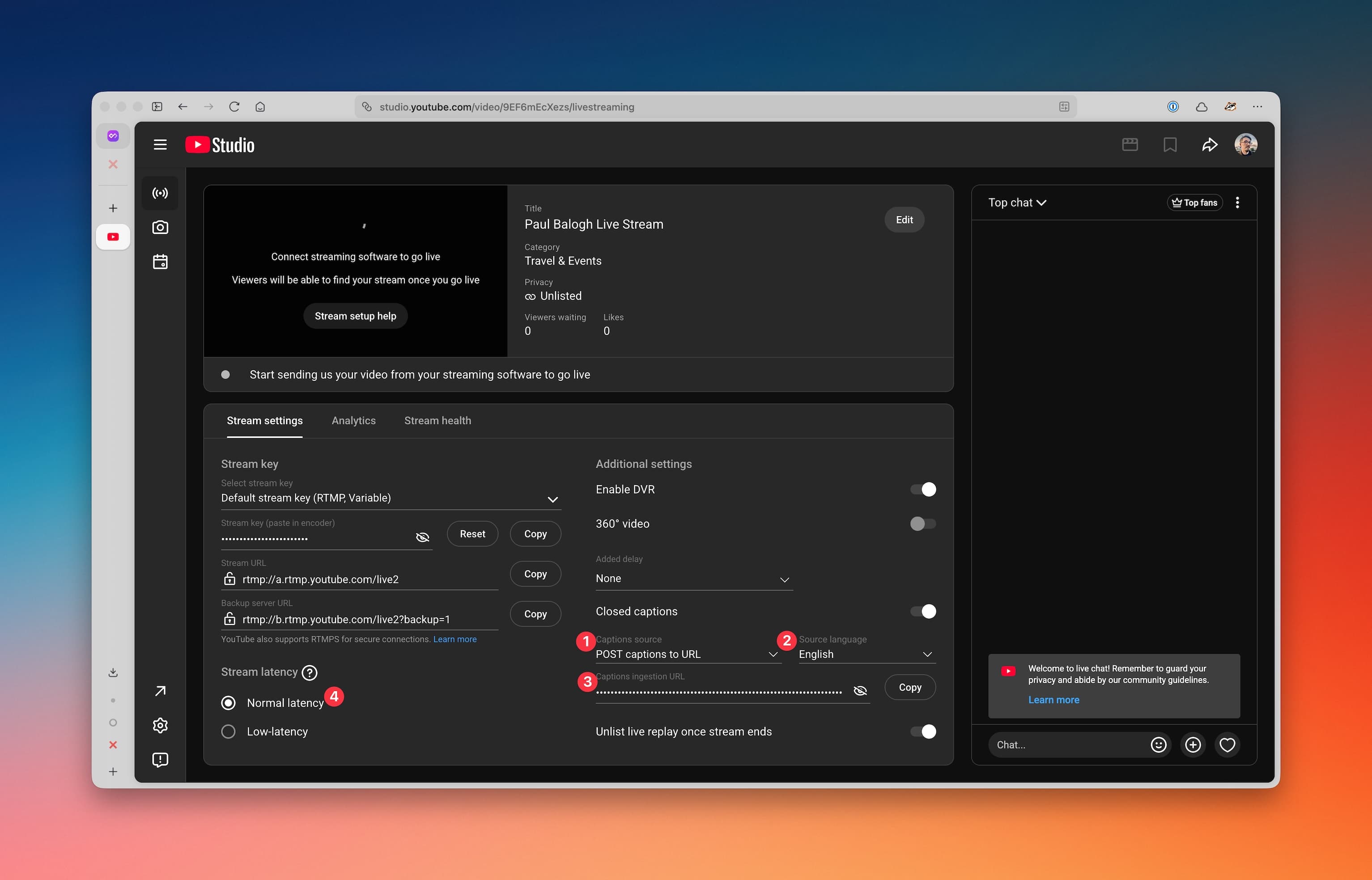
- Select "POST captions to URL" under "Captions source".
- Choose the Source language (this is simply a label, Youtube will show whatever language we send based on the settings in Line 21 under the label selected here).
- Copy the Caption Ingestion URL. You will need it later when you setup the Youtube destination in Line 21.
- Ensure "Normal latency" is selected.
See YouTube's own guide for more details: Turning on Closed Captions for Events
Setup Line 21
In Line 21, when you choose the YouTube destination:
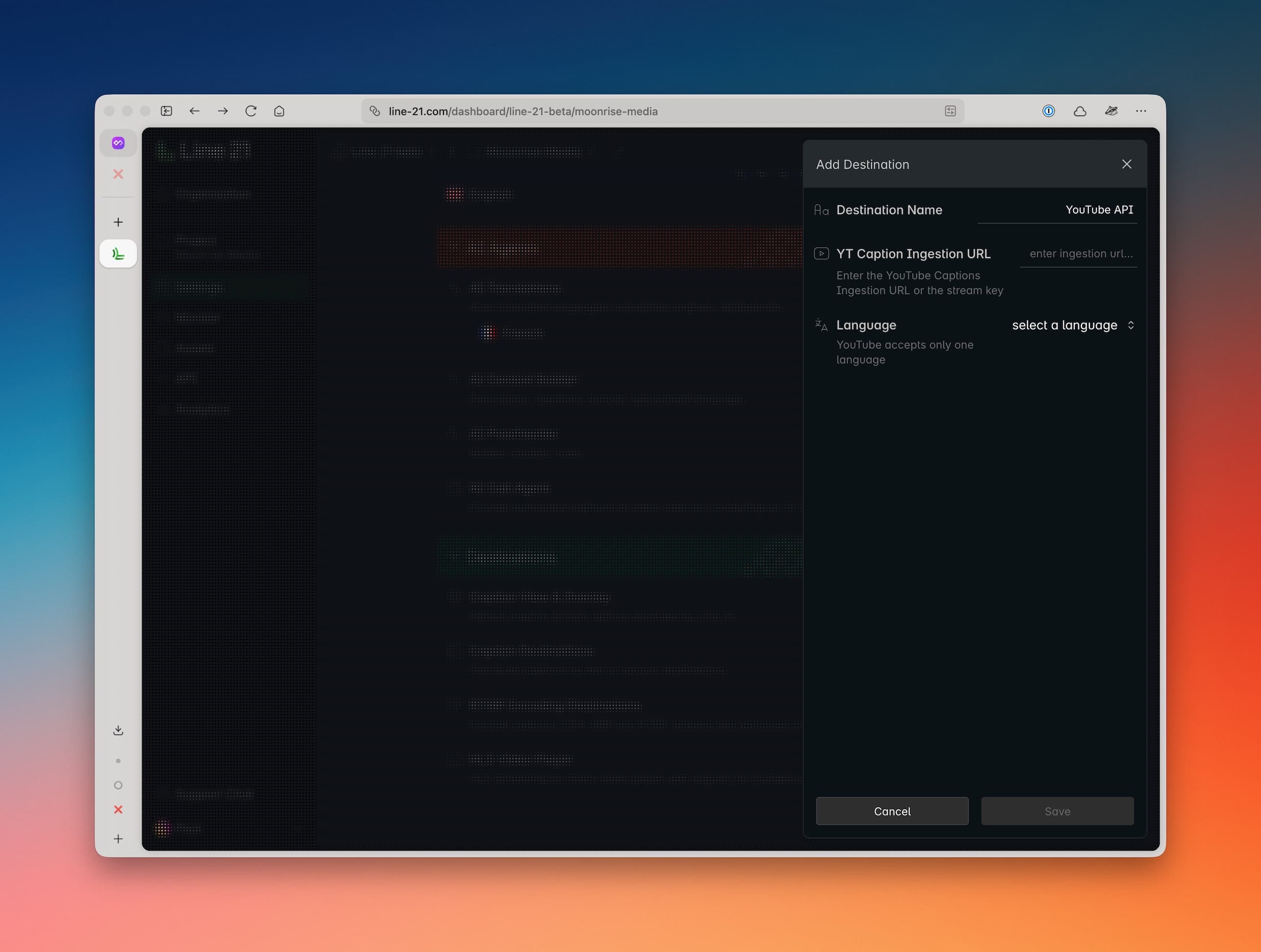
- Give it the name you want the session to have.
- Enter the Caption Ingestion URL or the Stream Key into the empty field.
- Select the desired language for your captions.
Restreaming (beta)
In some niche cases, if you need to combine ASR from RTMP/SRT with text-based caption delivery to YouTube. In these cases you also need to handle the restreaming of the original video to the very same YouTube destination(s). We can enable this for you, contact us.
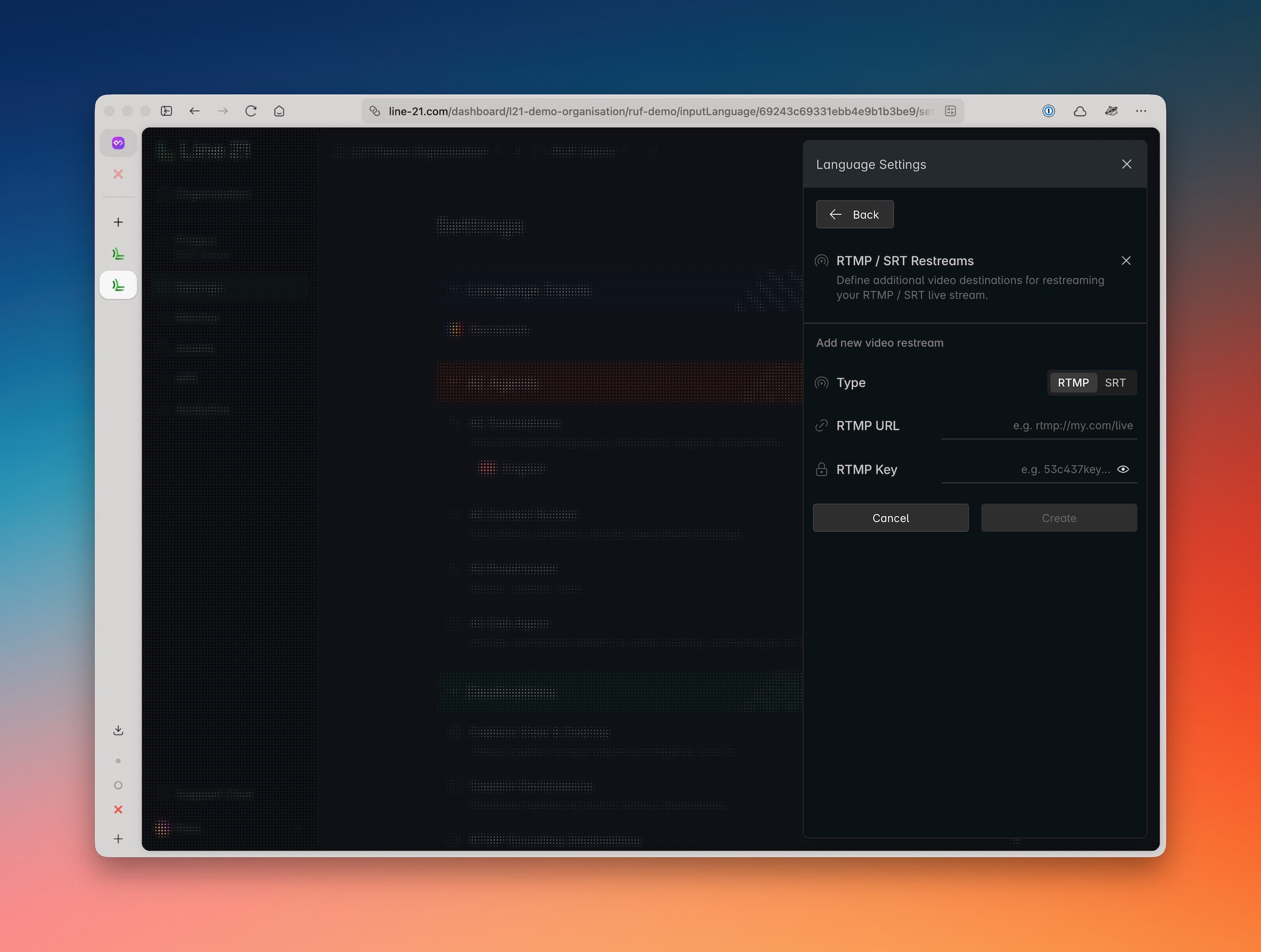
Notes
- It is important to have YouTube automated captions turned off, otherwise they will 'compete' with Line 21 captions and result in illegible captions
- YouTube will only allow one language at a time via API token
- If you are using a human captioner, you will need to have them join a 'source audiovisual call' to receive the real-time feed of the livestream.
- If you are using automated captions through an RTMP / SRT stream, you should check the RTMP streaming for YouTube documentation for more details.
Zoom API
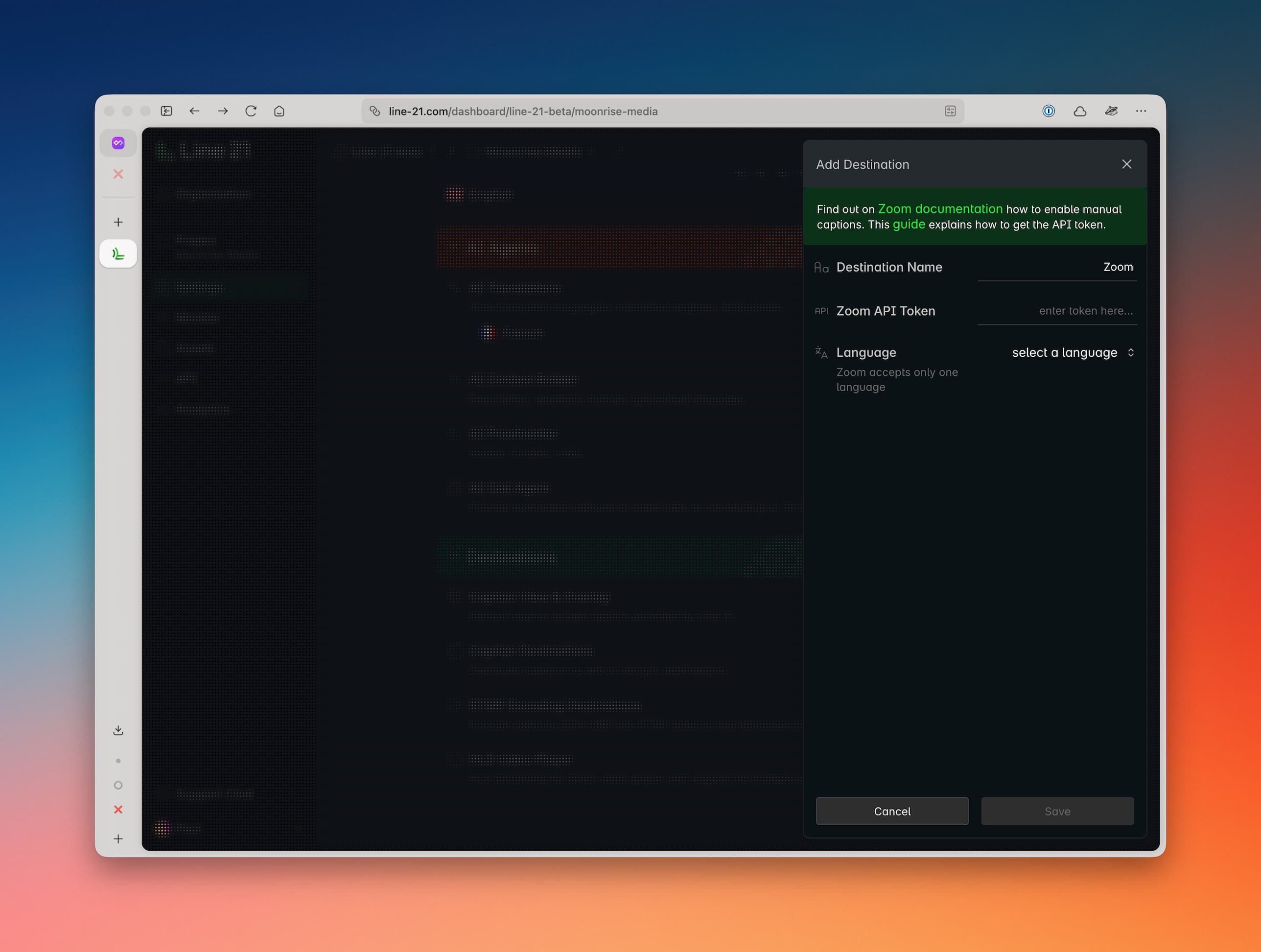
Zoom allows third party captioning software to send captions in Meetings and Webinars. This can be human or automated captioning.
Prerequisites
- If you are using a human captioner from Line 21, they will need to join your call in order to hear the content to caption.
- If you are using automated captions from Line 21, then our AI Call Agent will need to join your call in order to process the audio-visual stream.
Zoom call their API connection an API Token and this is retrieved from the Zoom session once the scheduled start commences. See Zoom documentation for how to retrieve the API token.
Setup
In Line 21, when you choose the Zoom destination:
- Give it the name you want the session to have
- Enter the API token into the empty field
- Select the language your captions should appear in
Notes
- Zoom Settings can only be accessed via browser to setup third-party captioning (not in the app)
- It is important to have Zoom automated captions turned off, otherwise they will 'compete' with Line 21 captions and result in illegible captions
- Zoom will only allow one language at a time via API token
- Breakout rooms will require their own API token
Microsoft Teams API
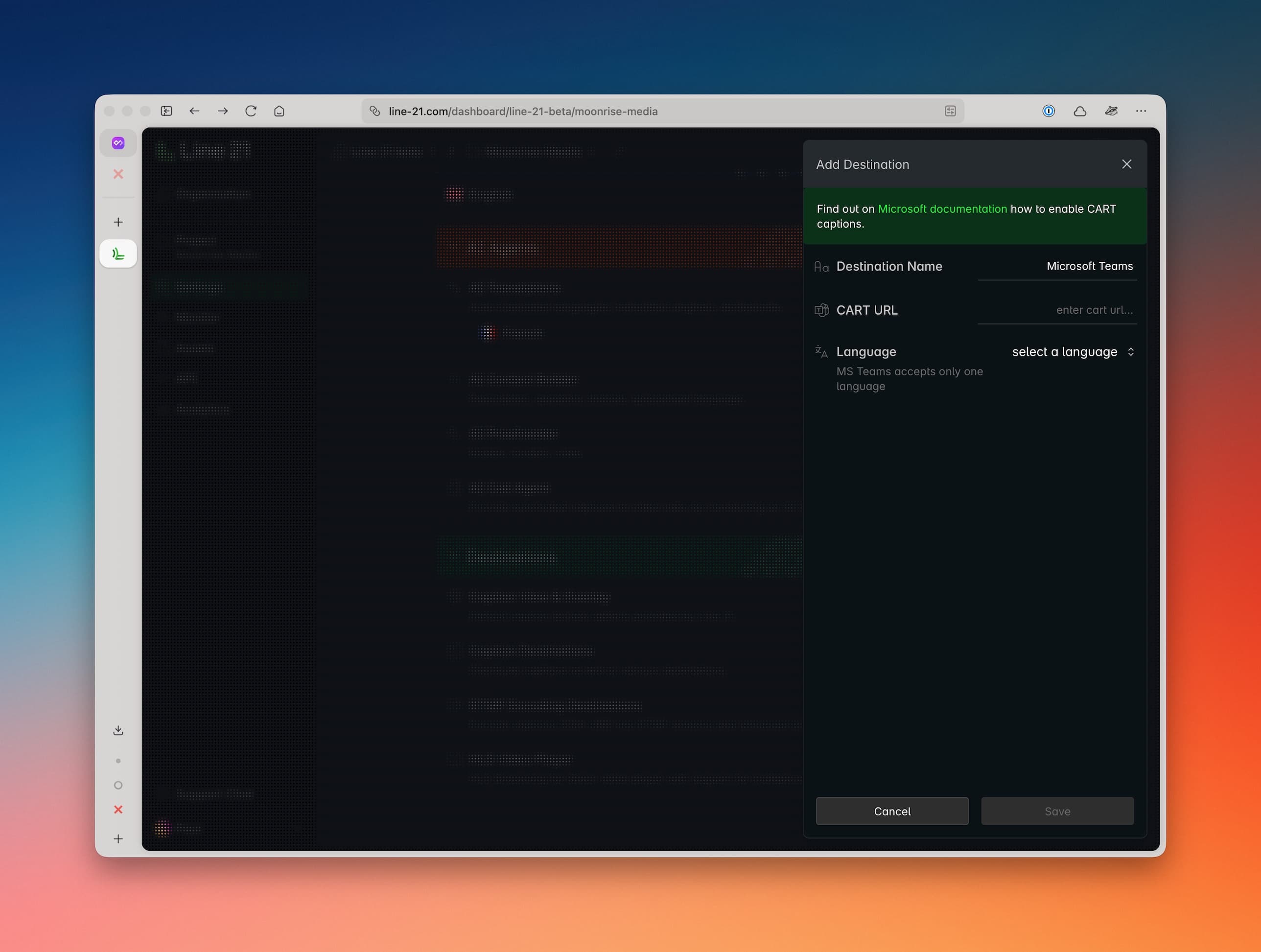
Microsoft Teams allows third party captioning software to send captions in their calls. In some cases, this service is locked to Enterprise accounts - you may need to check your account to access this feature.
Prerequisites
- If you are using a human captioner from Line 21, they will need to join your call in order to hear the content to caption.
- If you are using automated captions from Line 21, then our AI Call Agent will need to join your call in order to process the audio-visual stream. The AI Call Agent's support for MS Teams is under development.
MS Teams call their API connection a CART caption link and this can be retrieved in advance of the session start. See Microsoft documentation for how to retrieve the CART caption link.
Setup
In Line 21, when you choose the MS Teams destination:
- Give it the name you want the session to have
- Enter the API token into the empty field
- Select the language your captions should appear in
Notes
- It is important to have MS Teams automated captions turned off, otherwise they will 'compete' with Line 21 captions and result in illegible captions
- MS Teams will only allow one language at a time via API token
- Breakout rooms will require their own API token