
Browser
A browser page is the simplest, most versatile, way to display live captions. It has a number of advantages:
instant delivery- since it doesn't require any additional video encoding it's latency is extremely lowmultiple languagessupports by default - viewers decide which language they want to seeno additional setuprequired - the browser page is always available in all projectsno extra costhighly accessible- viewers can use their own devices to follow the captions, or the organisers can show the page on a screenhighly customizable- you can style the colors, the fonts, the size, the alignment, all to your liking
When to use browser
Browser page caption delivery works in a wide range of scenarios including:
- in-person event where the organisers want to show the captions on a screen
- in-person event where the organisers want to share the link with the audience
- online event where the organisers want to share the link with the audience through chat
As a general rule: if you do not need to display the captions in a video player, the browser page is the default destination. Other text-only destinations are explored here.
Supported languages
The browser page can display all languages supported by Line 21 as a source.
Setup
No setup is required. Every Line 21 captioning project has a browser page link automatically generated at no extra cost.
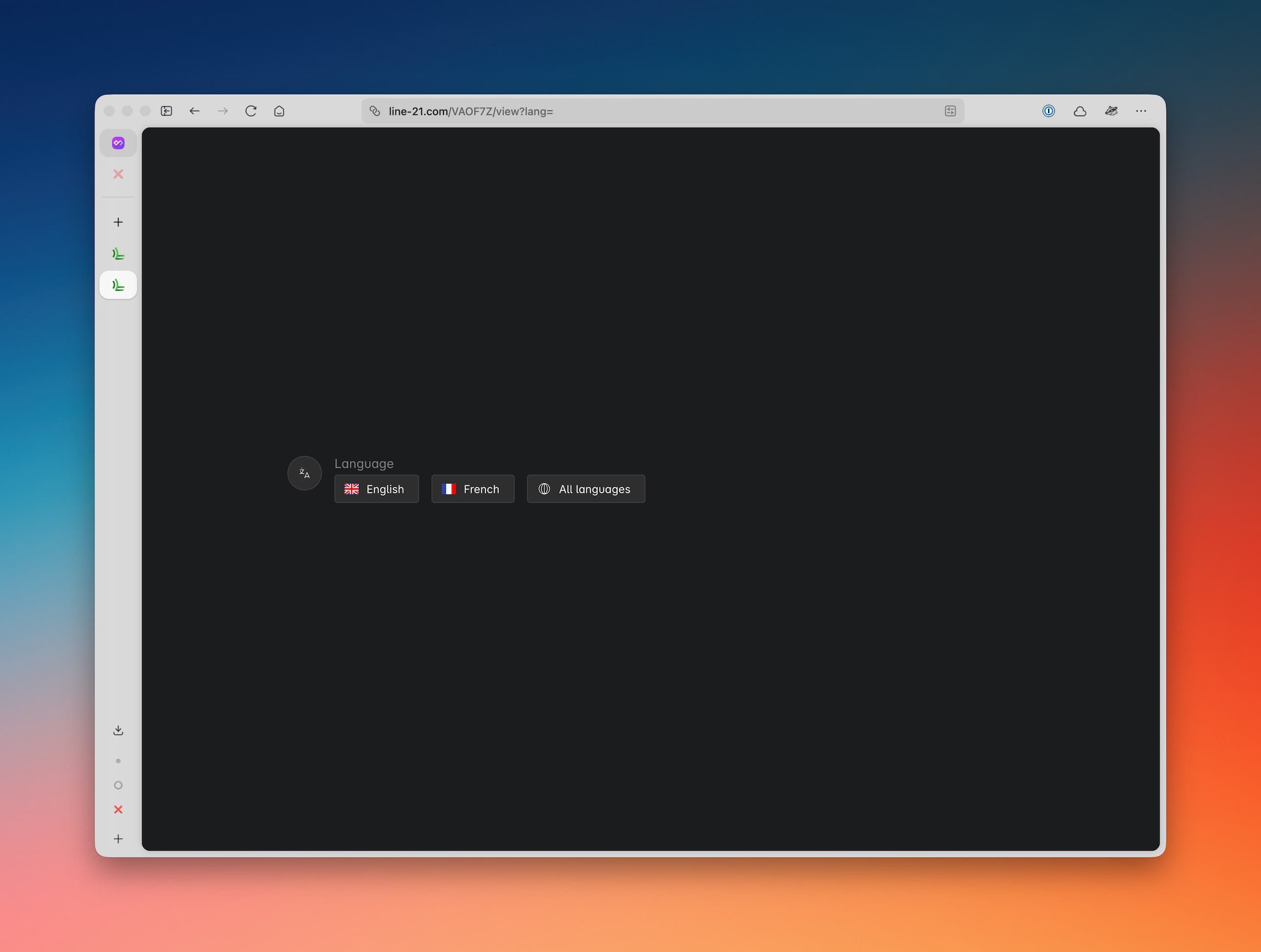
On access, the browser page link requires two pieces of information:
- the
project code(which is usually a 6-character code already included in the shared link) - the desired
language(which is typically not included in the link and that viewers need to select for themselves)
Sharing the link
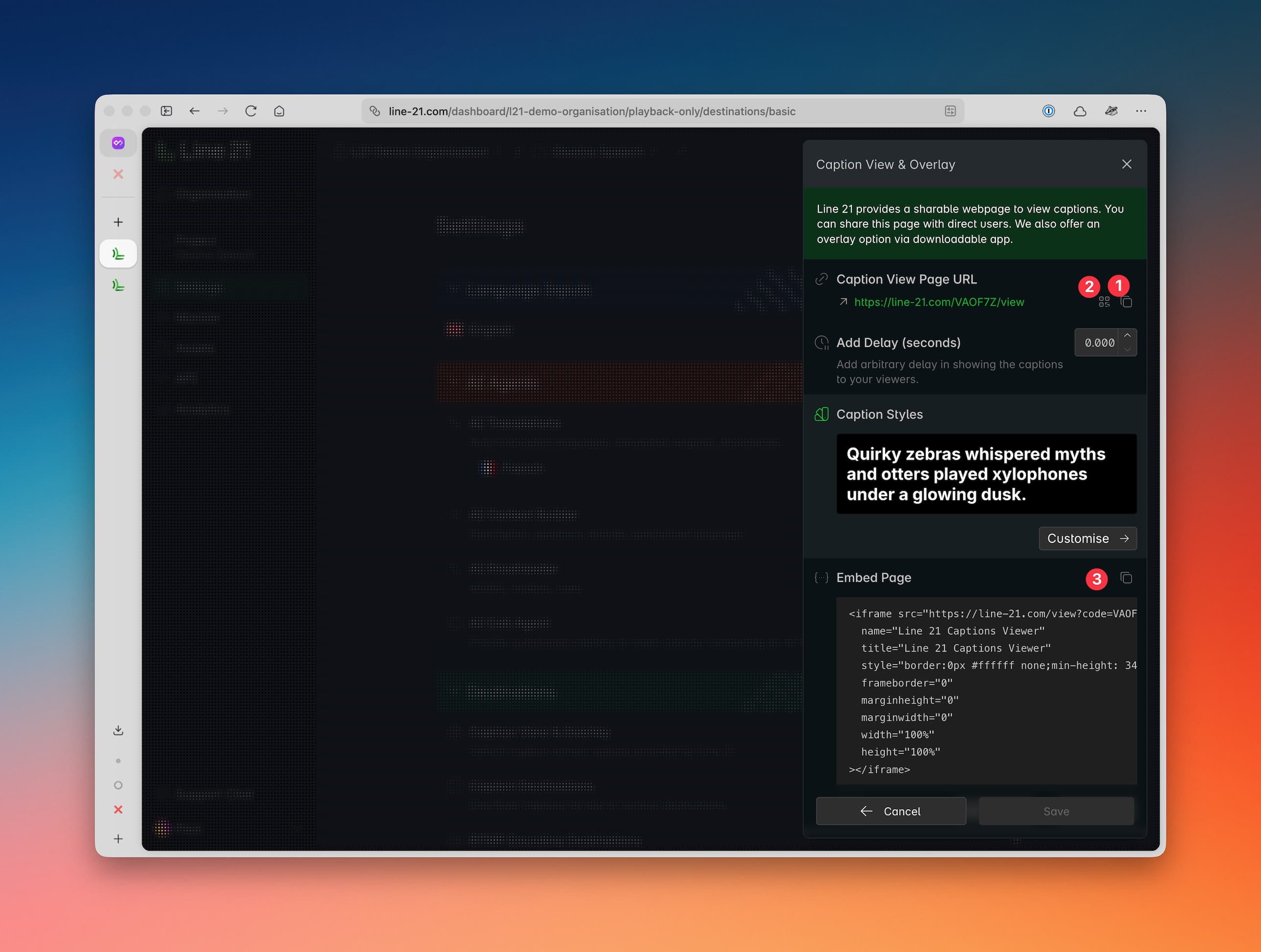
Three ways to share the link:
- Copy the link from the dashboard.
- Show a QR code.
- Embed the page itself in another website or application.
Settings
The browser page has two types of settings:
general settingsavailable from the dashboard (that apply to all viewers)individual settingsavailable from the browser page (that apply only to the current viewer)
When an individual setting challenges the general setting, the individual setting takes precedence. For example, if the general setting sets the background color to green but the individual setting prefers black background, the black background wins.
General settings (dashboard)
Arbitrary delay
In some niche cases, you may want to add an arbitrary delay to the captions. For example, if you need to fine-tune the synchronization of pre-recorded captions in a live environment. This is available from the dashboard.
Preset styles
Line 21 provides fixed preset styles with the most common colour combinations for users. You can choose one of the presets or customize your own.
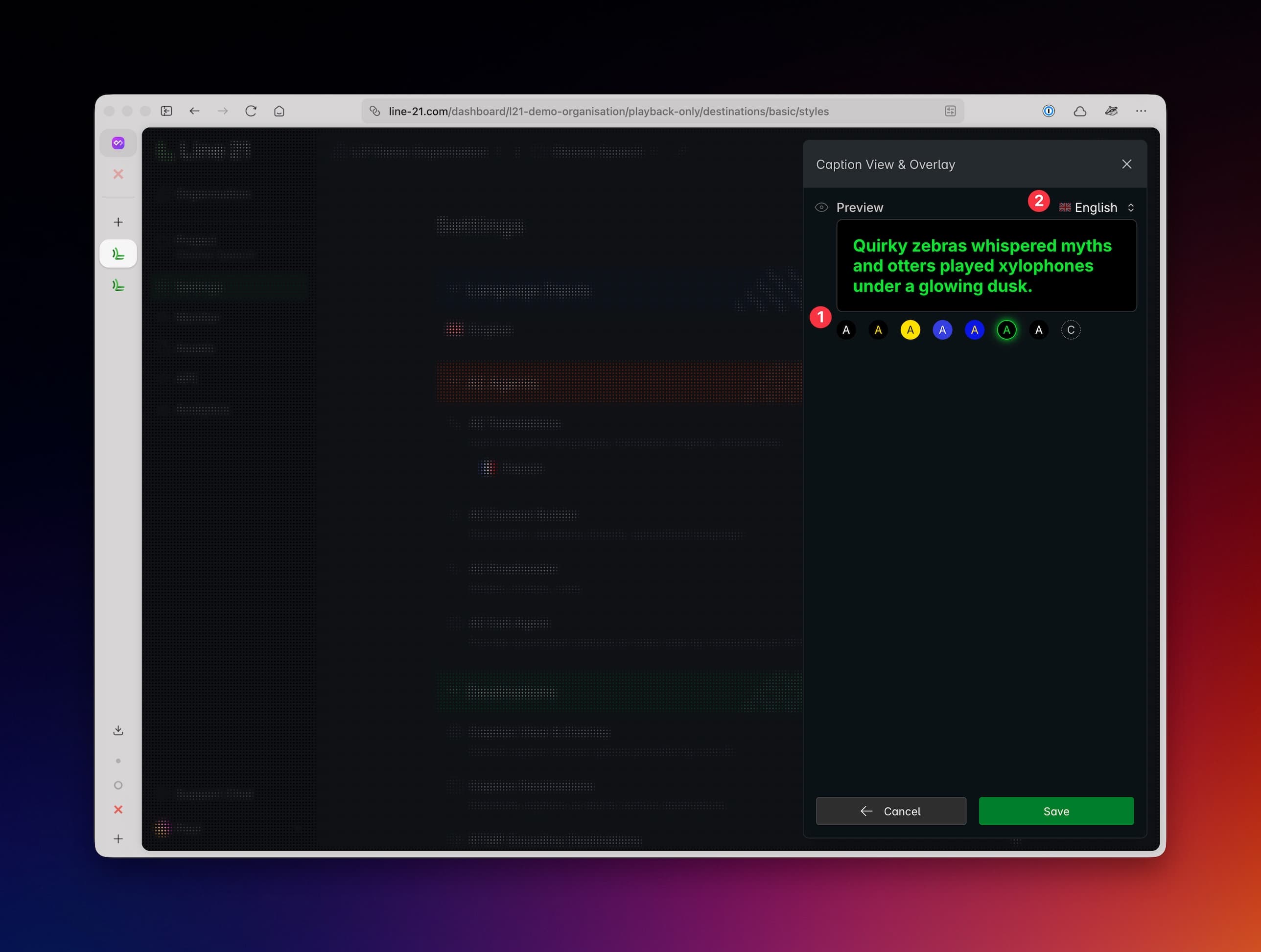
Available presets (1):
| Preset | Description |
|---|---|
| White / Black | White text on black background |
| Yellow / Black | Yellow text on black background |
| Black / Yellow | Black text on yellow background |
| White / Blue | White text on blue background |
| Yellow / Blue | Yellow text on blue background |
| L21 Green / Black | Special Line 21 green text on black background (like in old monitors) |
| Open Dyslexic | Dyslexic-friendly font with white text on black background |
You can preview the styles in box (2). Change sample languages for further fine-tuning.
Custom style
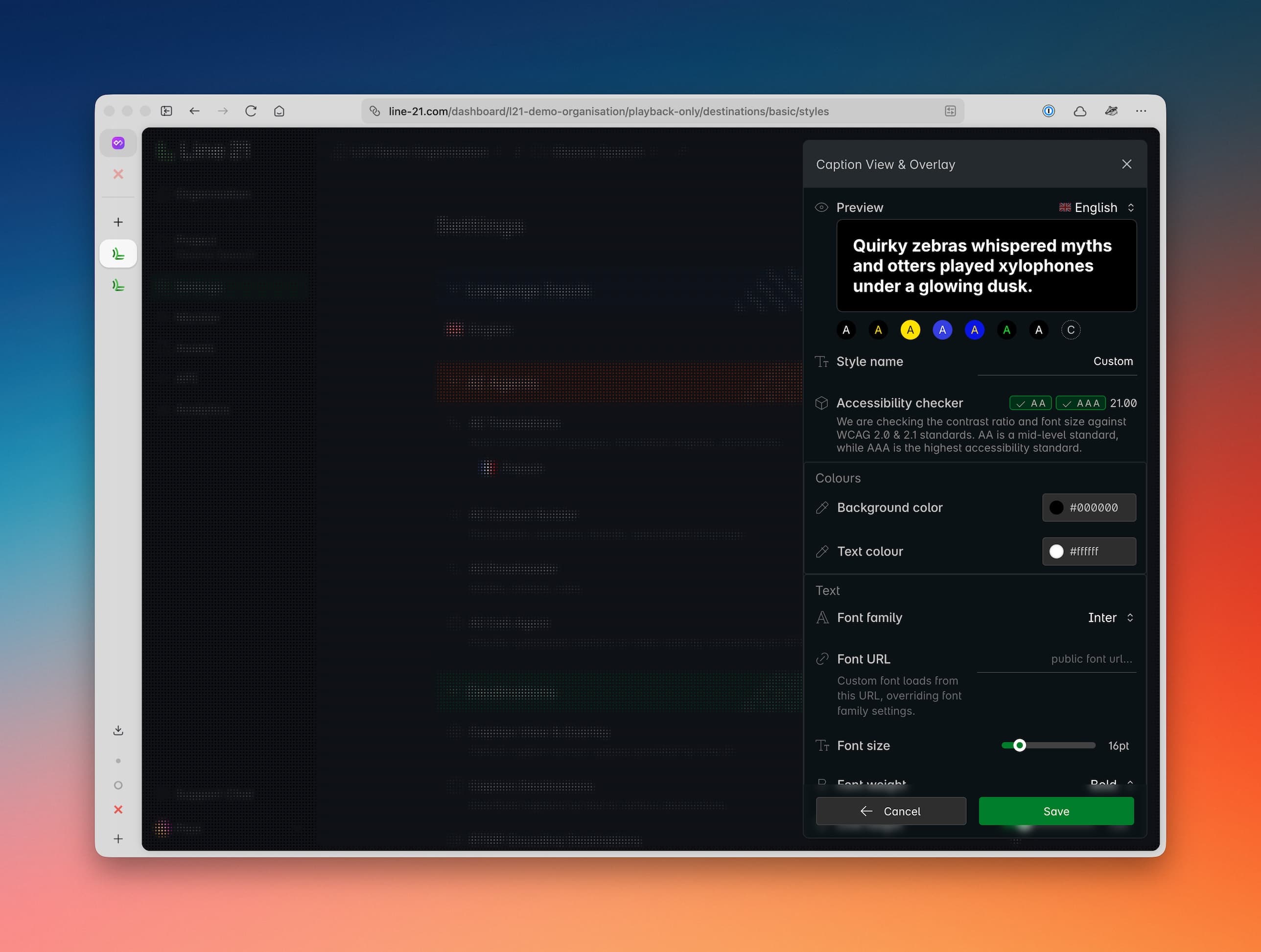
What you can customize:
Colors:
- font color
- background color
Font family:
Choose from a wide range of fonts:
- Google Fonts (visible to all your viewers)
- Your system fonts (visible only to you)
- Public Font URL (visible to all your viewers)
Text:
- font size
- font weight
- line height
- text alignment
Accessibility checker:
Line 21 has a built-in accessibility checker which uses WCAG; this will help you avoid colour contrasts that will be difficult for the audience to read and keep you compliant. Typically you would aim for an AA or AAA contrast ratio. Anything below AA is considered problematic for screen legibility.
Individual settings (browser)
The viewer can access the following from the top right of their browser page:
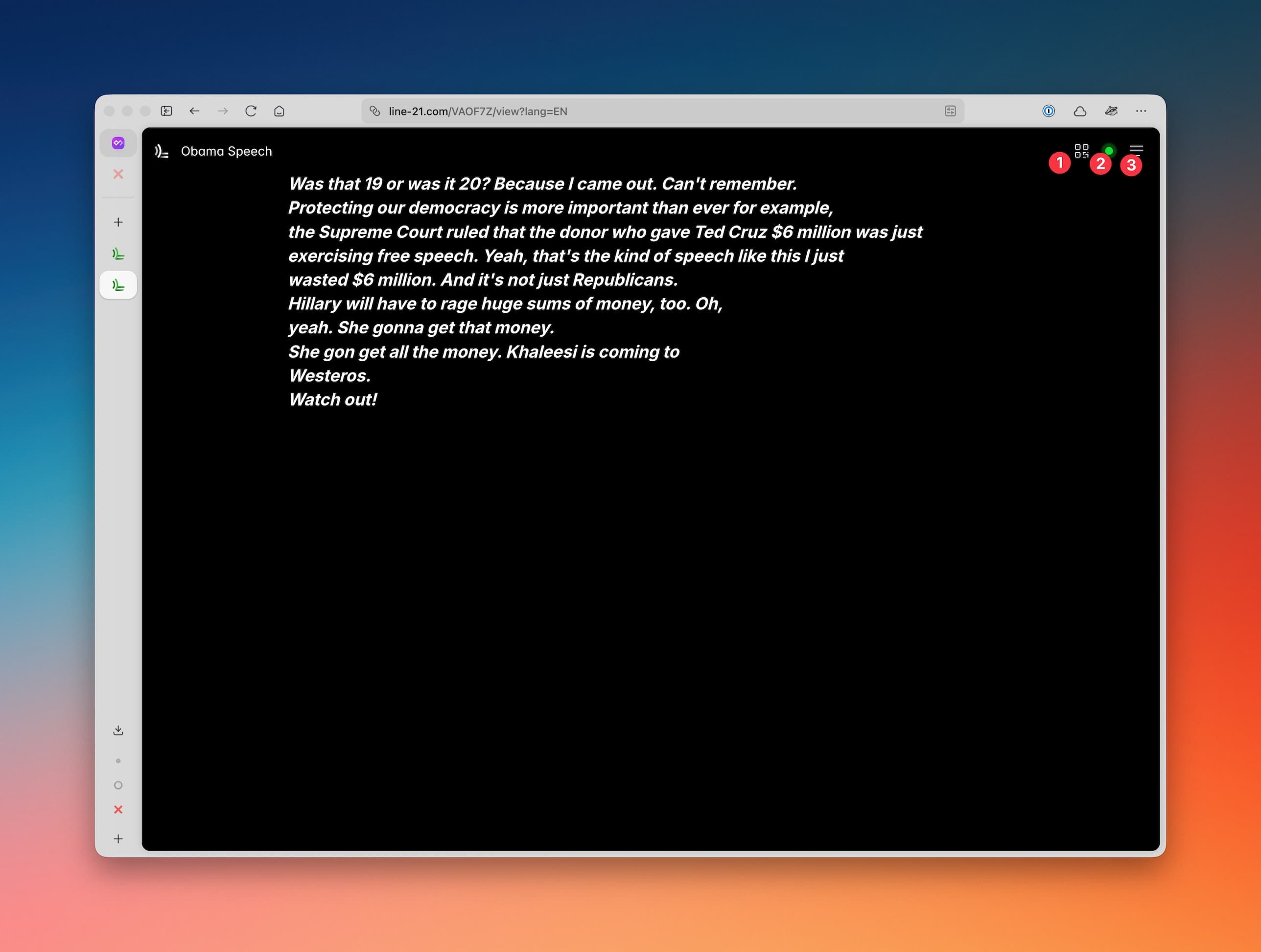
QR Code
An easy access link if the host/viewer wishes to share it with other attendees on their own devices nearby from this page.
Connection Status
An indicator that the viewer network is connected to the Line 21 platform and is stable; if green then all is well. If red, then the viewer is not connected and should check their internet connection.
Viewer Menu
The access point for viewer customisations.
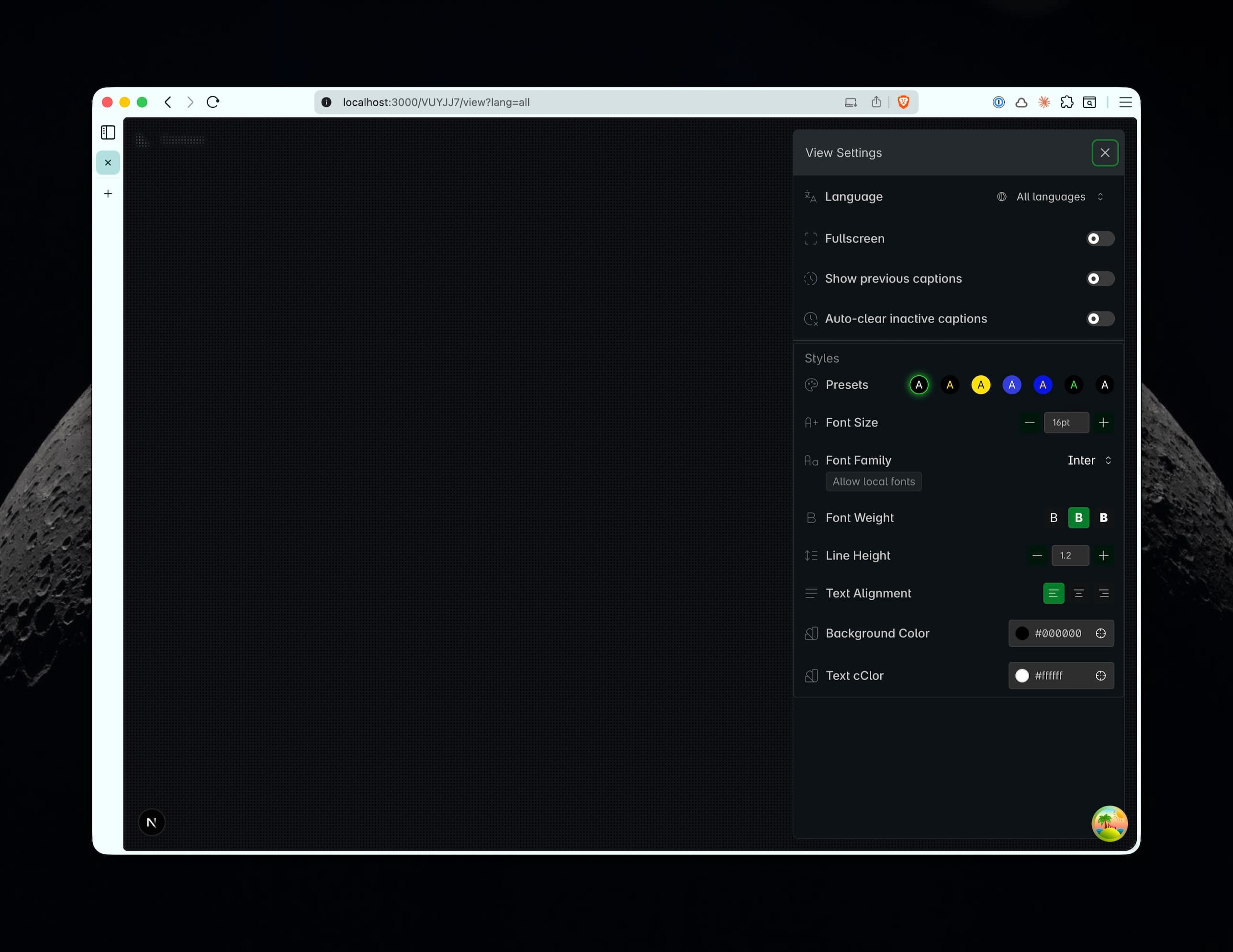
Language
Viewers can freely switch between their language choices at any time. This will refresh the page and the next new line will be in the selected language.
Fullscreen
This is an important setting, especially if you are the host. Using this setting will remove the banner at the top of the page for viewers, and just show text. If you use a browser page F11 or fullscreen system option, it will fullscreen the page including the banner (which is not always wanted, though we think our logo looks quite nice…)
Show previous captions
The last lines of characters will be shown in the view history. You can configure how many previous captions to show (1–99). This cannot be enabled at the same time as Auto-clear inactive captions.
Auto-clear inactive captions
When enabled, the screen is automatically cleared if no new caption has arrived for a configurable amount of time (default: 3 minutes, range: 0.5–60 minutes). This is useful for events with natural pauses, ensuring the screen does not show stale text. This cannot be enabled at the same time as Show previous captions.
Style customization
Similar to the dashboard options. Note: The WCAG accessibility checker is not visible to viewers here, as we assume any viewers making individual adjustments will know their taste and text legibility needs.