Overlay
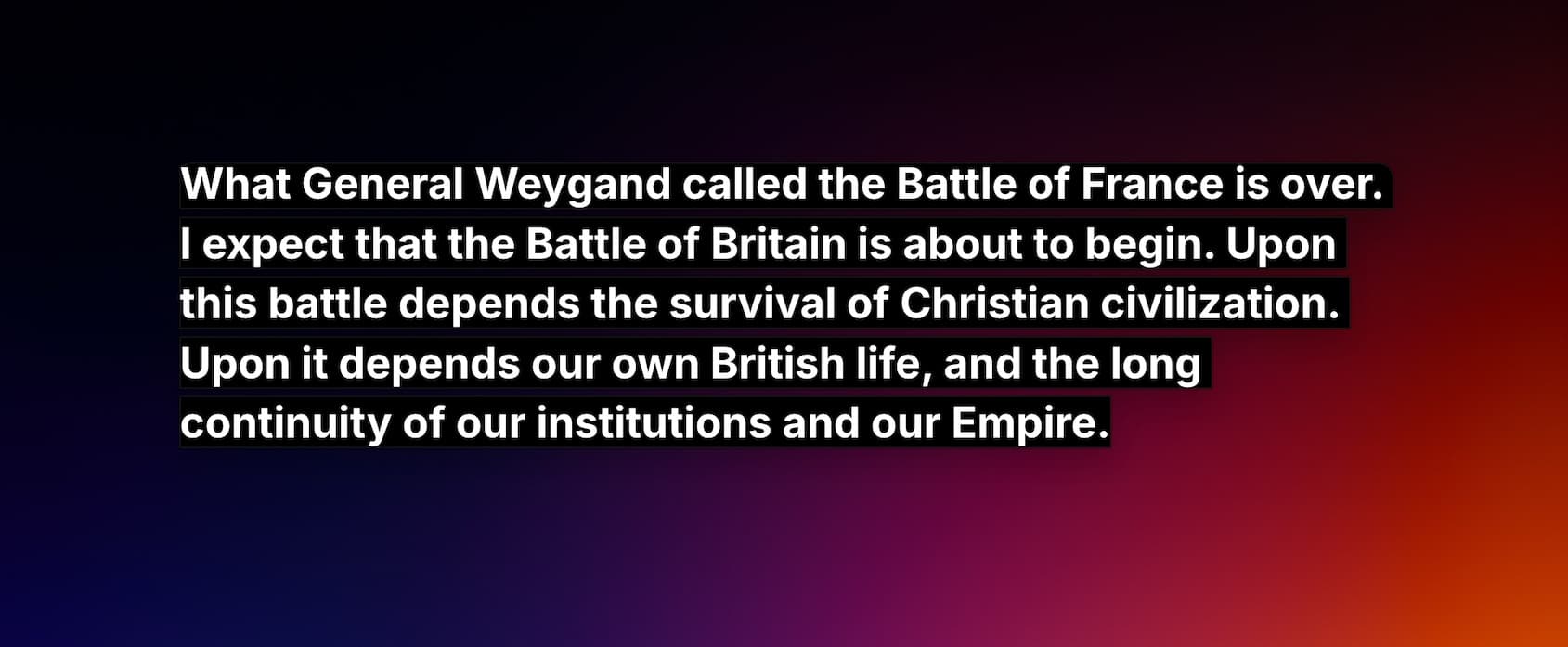
The Overlay is a floating, borderless window with customizable colors and styling, designed to display captions on screen on top of other content or applications.
When to use the Overlay
Because the window can be made fully transparent it can be used in certain scenarios:
- Burned-in captions for live events: the Line 21 overlay can be used to display captions on screen on top of other content or applications via video production software such as OBS or vMix.
- In-venue display: as a standalone display or as a video overlay.
Supported languages
The overlay can display all languages supported by Line 21 as a source.
Prerequisites
- A Line 21 project with a Project Code.
- The Line 21 App installed on your computer.
- The Line 21 App connected to the server via the project code.
- Choose the overlay section.
Settings
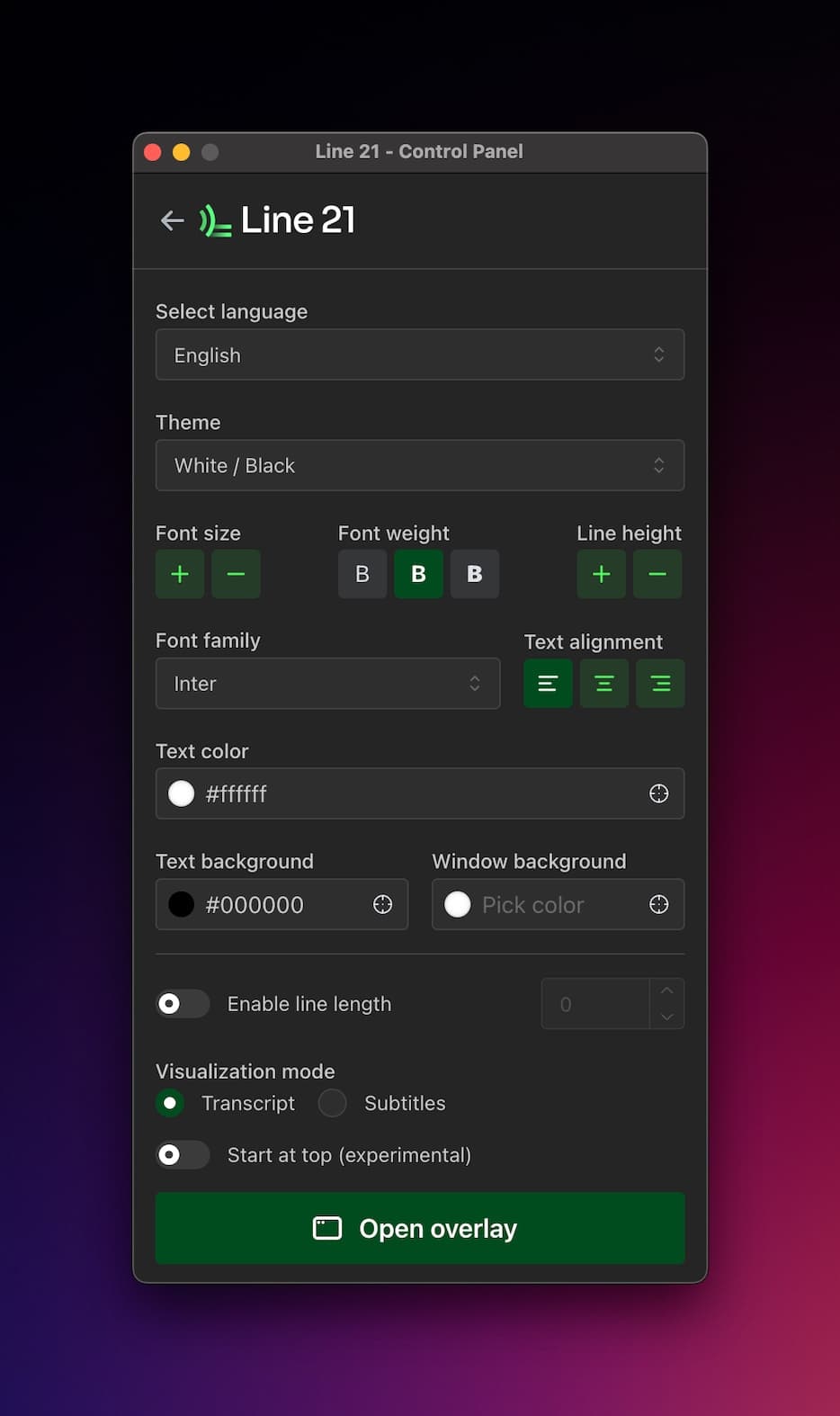
You can configure these settings either before opening the overlay, or after it is open. The changes are applied immediately without the need to reopen the overlay window.
Style Settings
You can fully customize the appearance of the captions.
You may choose from predefined themes or adjust each setting individually.
Options include:
- Font color
- Font size
- Font family
- Line height
- Background color
This allows you to match the exact visual style required for your production.
Line Length
The Line Length setting determines the maximum number of characters per line.
This is useful when you need precise control over text wrapping, especially when integrating the overlay into a video workflow.
Transcript vs Subtitle mode
The overlay offers two display modes:
| Mode | Description |
|---|---|
Transcript | Text remains on screen indefinitely and scrolls only when necessary. |
Subtitle | Text appears and disappears according to the caption timing, similar to standard movie subtitles. This mode is ideal when burning captions directly into a video. |
Start at Top
By default, captions appear from the bottom of the overlay window.
If you prefer them to appear from the top, enable Start at Top.
In both cases, once the captions have filled the available space, the new lines will scroll from the bottom of the page.
Open / Focus the Overlay
Once all the settings are to your satisfaction, you can open the overlay by clicking the "Open overlay" button. A new window will appear waiting for captions to be displayed.
When the overlay is open, you can click the "Focus overlay" button to bring it to the front. Due to its transparent nature, it is easy to miss if it is not in the foreground.
Window Size
You can resize the overlay window to your desired size. This is the main method for controlling the number of lines and the width of the overlay window.
For each project, the width and height of the overlay window are saved in your browser's local storage. This means that if you close the browser and open it again, the overlay window will be resized to the last saved size.
Test Captions
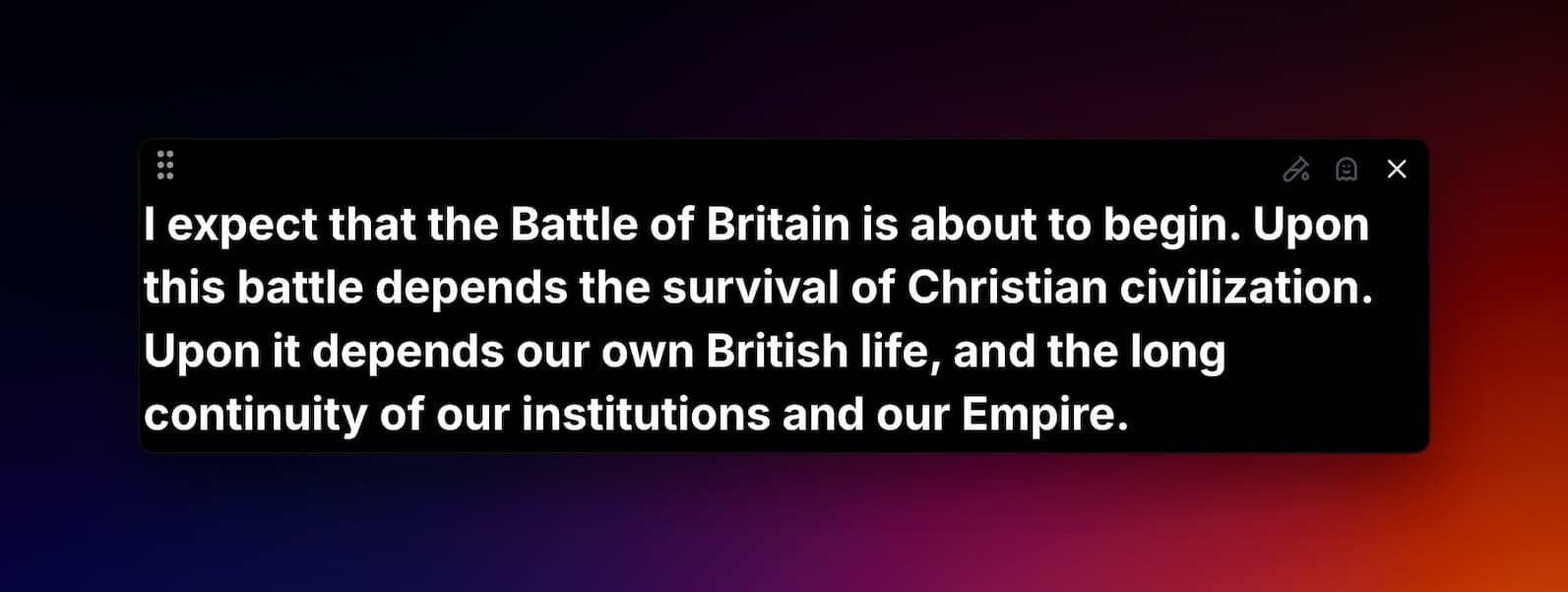
Once the overlay is open, you can enable Test Captions from the top-right corner (1).
This feature is useful for previewing style changes in real time.
Ghost Mode
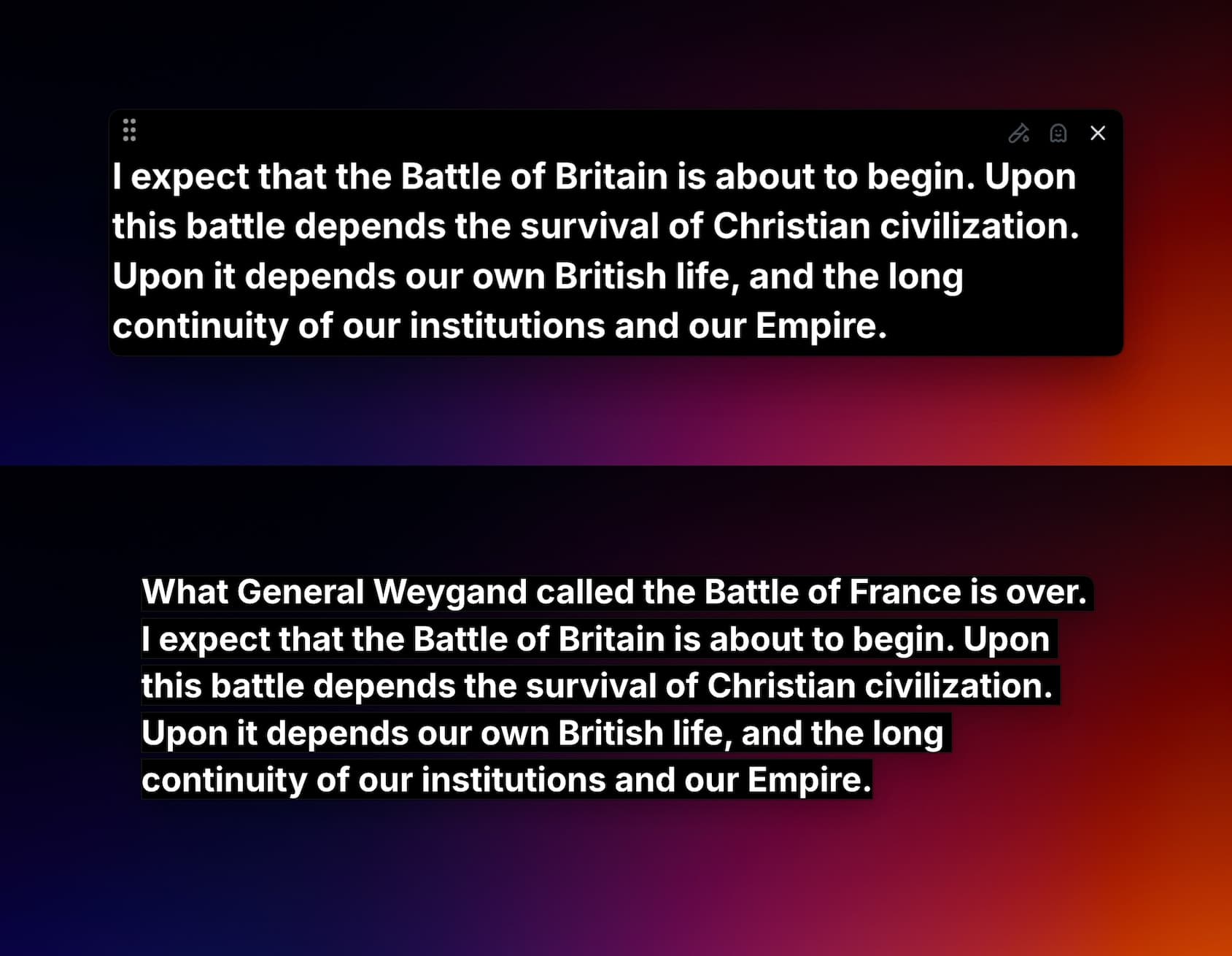
Ghost mode is the most important feature of the overlay (2). It hides the background of the overlay window itself, making it fully transparent. The lines of text carry their own background color, so you can still see the text clearly, but only if the text exists on screen. When no text is present, the window itself is invisible.
Compare the overlay without (top) and with (bottom) ghost mode enabled.
If you lose track of the invisible overlay, simply click Focus Overlay to bring it back into view.