

Caption Playback
Caption playback is a method to play a pre-recorded subtitle file (.srt or .vtt) during a live event. It is useful for technical testing, or pre-recorded live streaming without the need to schedule it in a playlist.
Setup and configuration
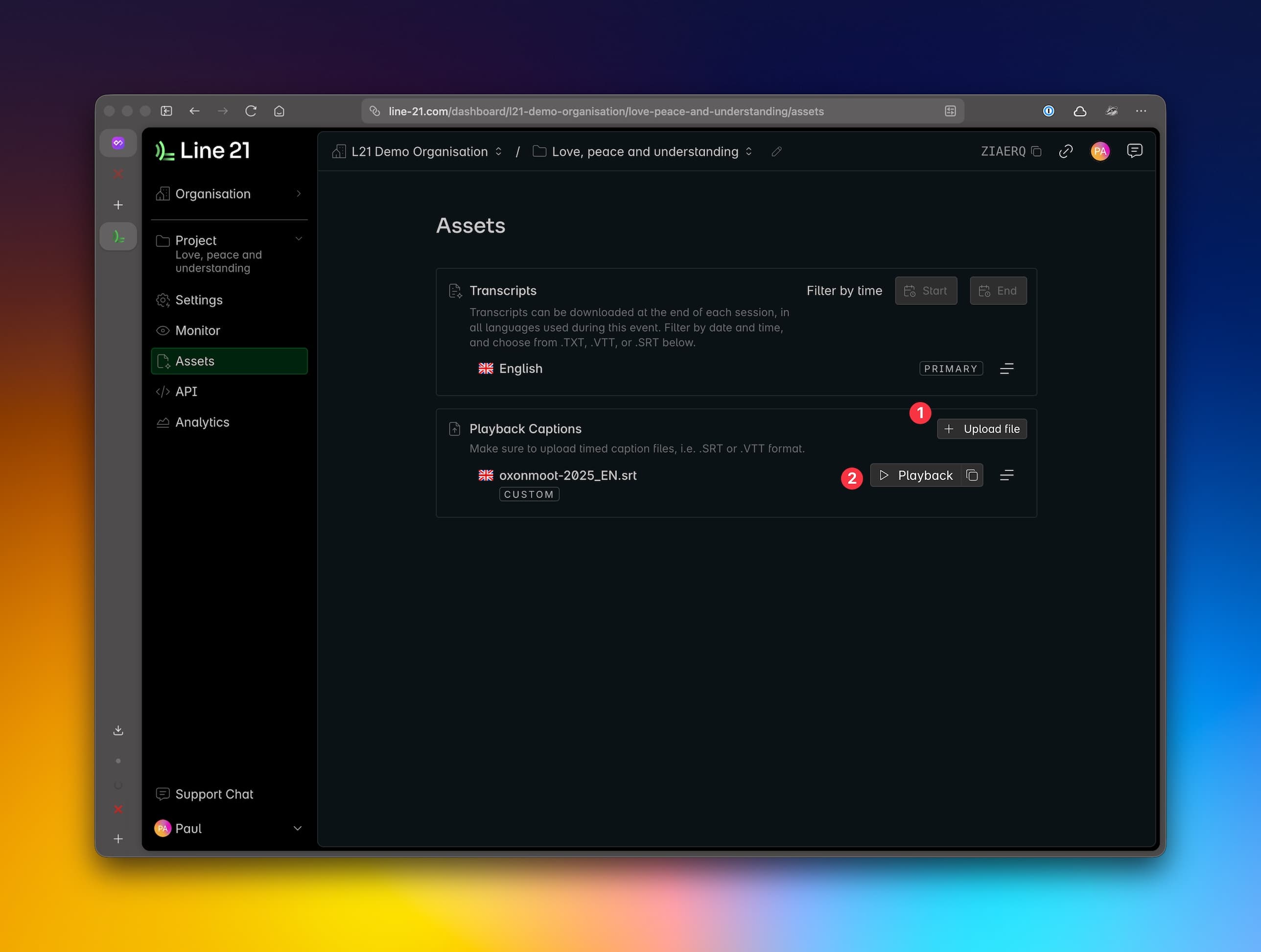
- In the
Assetspage, underCustom Caption Assets, selectUpload Fileand add your .SRT or .VTT file. - Press
Playto see the page dedicated to playing the subtitle file.
Going live
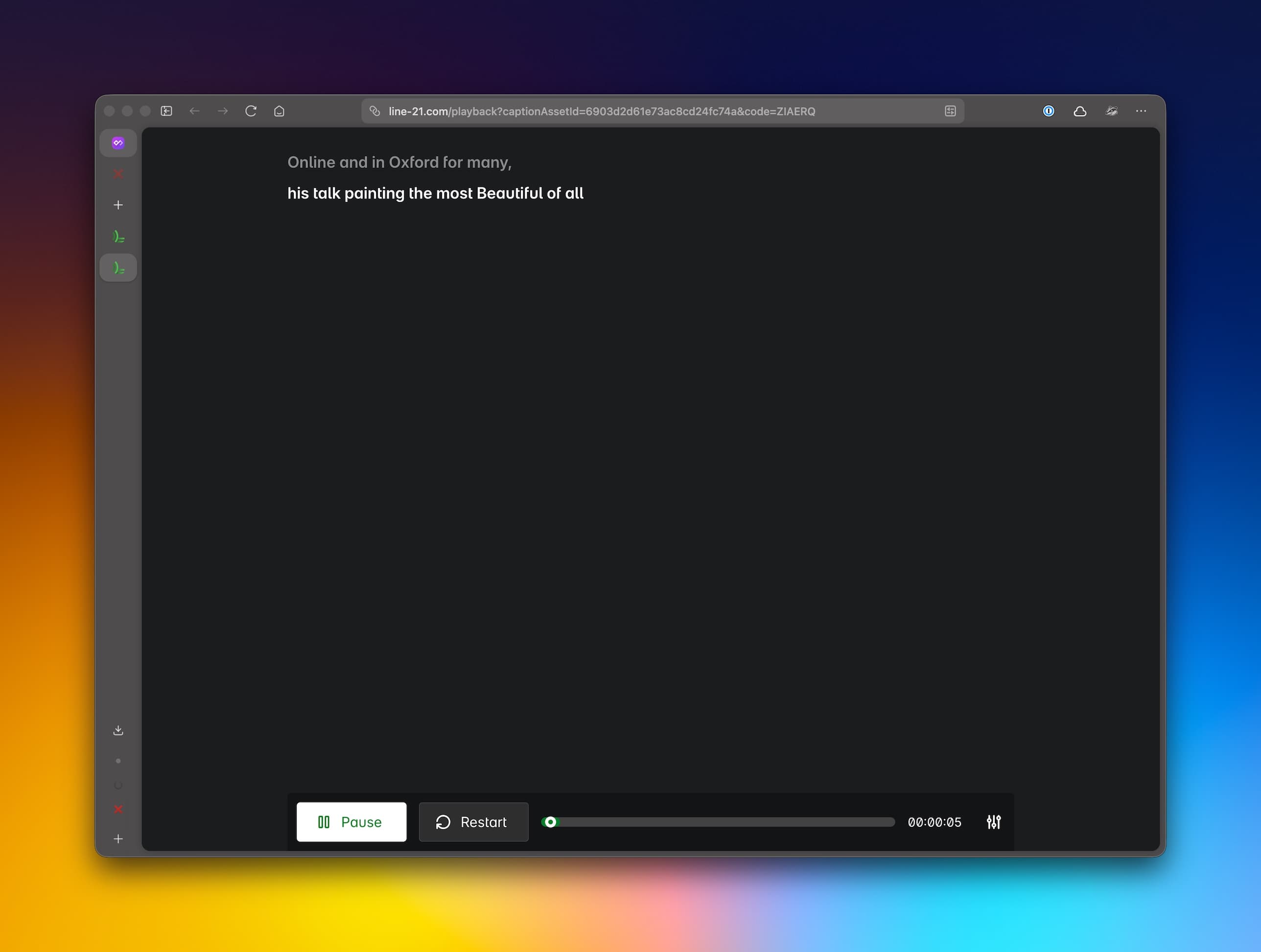
Control the playback simply by pressing the Play, Pause and Restart buttons. Scroll through the timeline to see the captions at different times.
Your viewers will see the captions flowing in the captions browser page.
Options
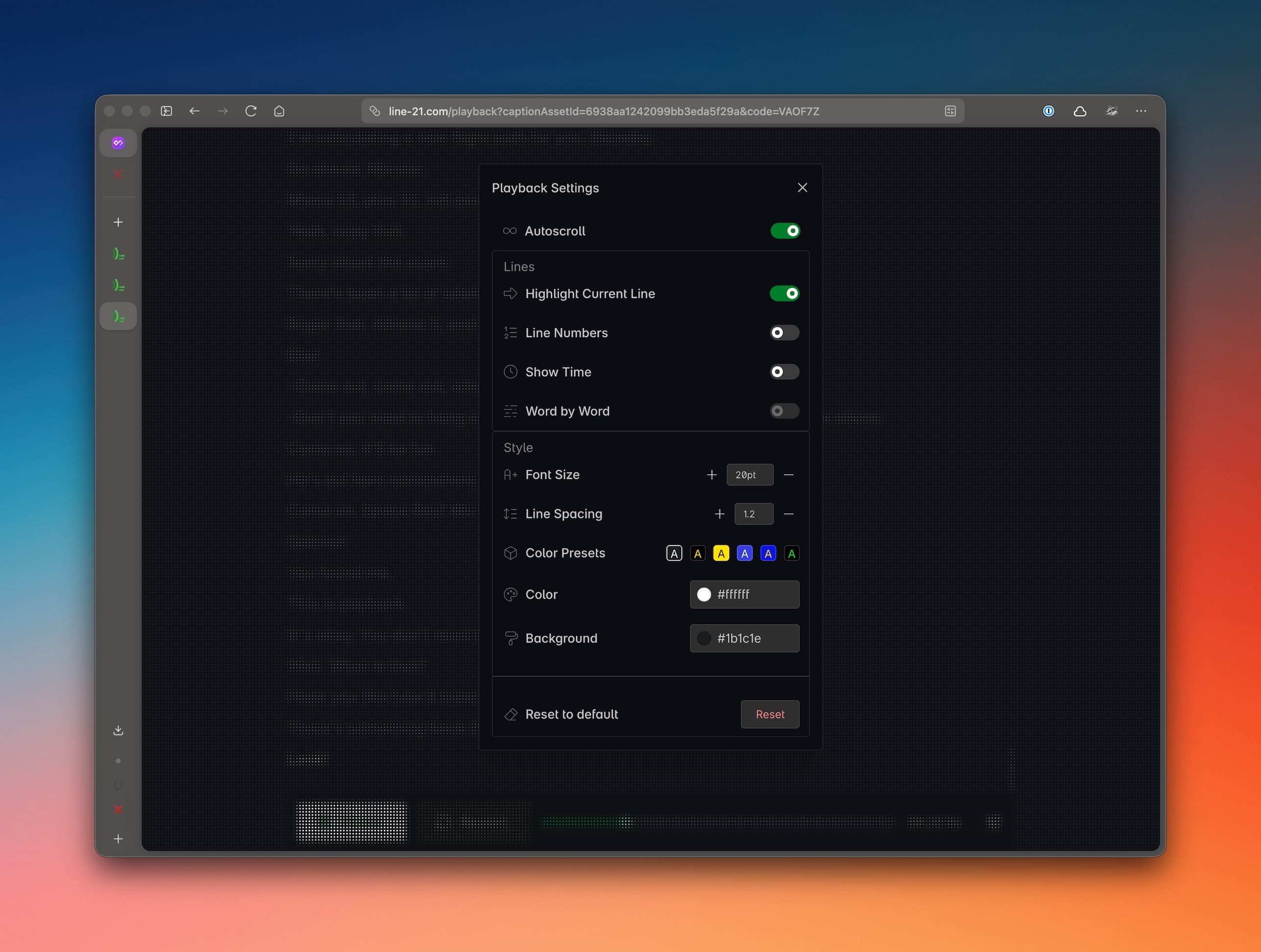
There are a few options you can configure to customize the playback:
- Autoscroll — When on, the page is autoscrolling to the current line.
- Highlight Current Line — When on, the current line is highlighted and previous lines are slightly faded.
- Line Numbers — When on, the line numbers are shown.
- Show Time — When on, the timestamps are shown.
- Style — The colors, font size, font spacing, presets, etc.
Playlists vs Playback
A Playlist is a type of project that uses a mix of live audio-visual feeds to provide live captions, as well as pre-recorded content. It can generate captions from live content, and also play a subtitle file. It used caption playback functionality to play the subtitle file.
Our Playback feature is a more direct method used to upload third-party (or Line 21) subtitle files and play those captions for your viewers without scheduling them in a playlist.